Quick start
Launching Nutshell
If you already tried to launch Nutshell by double-clicking its icon, you may have noticed that... nothing happened?
This is normal.
Nutshell is meant to launch a game, you didn't write one yet!
We need a game script
The nutshell binary (nutshell.exe on Windows, but I won't repeat that
anymore), must have a game script to execute.
By default, it will look for a file named main.nut in the current working
directory.
Info
When you launch nutshell from the command line, you can pass a specific
directory containing a main.nut file you want to run as its first
argument: nutshell path/to/my/script/dir/
Your first game script
Create the main.nut file next to the nutshell binary and open it with your
favorite text editor.
Then try to launch nutshell again.
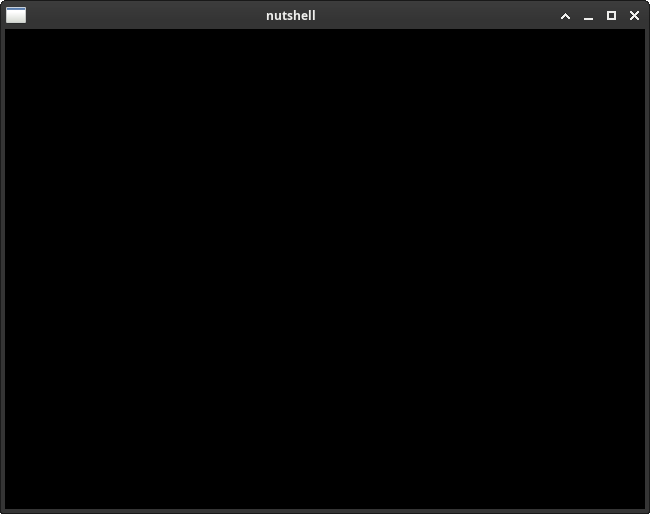
If you did everything right, you should see a black window with "nutshell" as a title:
"What did I do wrong?"
If you don't see a window like shown above and nothing happens:
- Check the content of your
main.nutfile, does it match exactly what is shown above? - Check your script file name, is it
main.nutand notmain.nut.txt?- On Windows 11: in the File Explorer, click the
Viewbutton on the toolbar, selectShow, thenFile name extensions. - On Windows 10: in the File Explorer, click the
Viewtab on the ribbon, go to theShow/hidesection and checkFile name extensions.
- On Windows 11: in the File Explorer, click the
- Try launching the game in a terminal. Script compilation or runtime issues
are usually logged there. For examples:
compilation error: main.nut:2:26: newline in a constantorcompilation error: main.nut:3:2: expression expected.
Launch in a terminal
When coding a game, most of the nutshell error reporting will happen to
its standard console output. So, be sure to launch your game from the
command line to check what is going on!
nutshell error reporting is made so that if you ctrl-click the file:X:Y
part of an error message in your favorite integrated development environment
(IDE) terminal, it should open the file at the failure point (if your IDE
support that kind of shortcut).
Hello Nutshell?
If you launched nutshell in a terminal, you may have noticed that our text
was going to the standard terminal output at a steady rate.
If you don't, you just saw a black window.
So... what happened?
This is not a Squirrel lesson
This is not a lesson on Squirrel (the programming language used for the game script), so I'll explain quickly here. If you need more info about the Squirrel language, please check the Squirrel documentation.
The update() function
The function keyword is used to declare... well... a function. update()
is the name of the function that we are defining.
Between the parenthesis, dt is the sole argument to the update() function.
Between the braces, we define the statements that will be executed when the
update() function is called: this is the function body.
The update() function is mandatory.
The update() function with a single parameter dt MUST exist for
nutshell to be able to run.
The update() function is the heart of your game.
It WILL be called 60 times per second.
The print() call
The Squirrel print() function output the given text on standard output.
Nothing more.
And standard output is on the terminal. So... yeah. We are printing "Hello world!" 60 times per seconds on the terminal and we don't do anything else.
That explains why the window looks so empty!
Hello Nutshell!
Okay, so we know that Nutshell works. How should we draw something to the screen? Mmmh... "draw" you say?
Let's update our main.nut script:
Note that we removed the code from the update() function (because we don't
want to print anything to the console anymore), but kept the function itself as
it is required!
Lets run again nutshell:
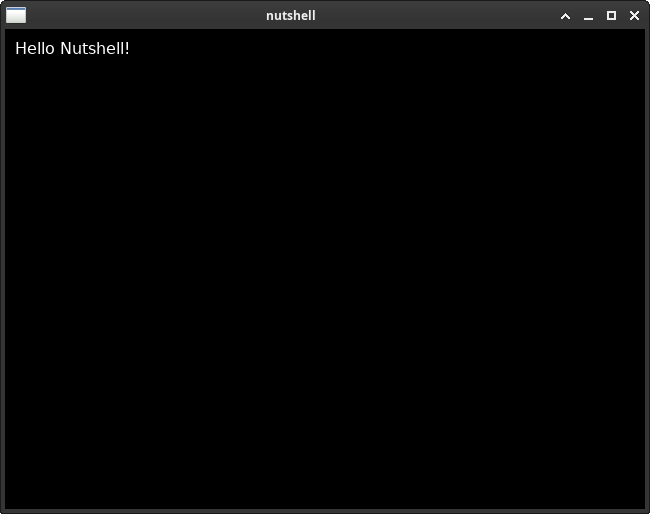
The draw() function
The draw() function is called by Nutshell as much as possible to try to
render what you want to draw so that your content is displayed nicely.
Nutshell will try to call it at the same rate that the monitor displaying the window is displaying images.
The "Golden Rule" of game loops
Keep your functions separated by their jobs:
update()is for logic (calculating physics, moving characters, etc.).draw()is strictly for visuals (rendering text, shapes, and images, based on the data from the update function).
You should not put game logic inside draw(), and not try to draw things
inside update()!
Drawing text
Font is one of the Nutshell standard classes available to you to code your
game.
Instances, classes, methods and variables?
If you don't know anything about object-oriented programming (OOP), here is a really, REALLY tiny primer:
Think of a class as a blueprint, and an instance as the actual object you build from that blueprint. You can use the same blueprint to build as many individual objects as you want.
Methods are functions (actions) that belong to a class or an instance.
To create a new instance from a blueprint, you call its constructor:
a special setup function that shares the class's name. In Squirrel, you
call methods by using a dot (.) followed by the method's name and its
parameters between parentheses ().
A variable is just a labeled box used to store a value so you can reuse
it later. You use the local <name> = <content> pattern to assign it.
Putting it all together:
The Font() constructor called without any parameter tells Nutshell to load
the default font (Bitstream Vera Sans).
So Font() is really just "gimme the default font so I can display text with
it please".
Now that we have the default font, we call its draw() method to render text on
the screen. It takes 3 parameters explaining where and what to draw:
- First parameter is the position on the X axis
- Second is the position on the Y axis
- Third is the string we want to draw
Try changing the string to I now know nut-fu! and see what happens!
 Eat the nuts!
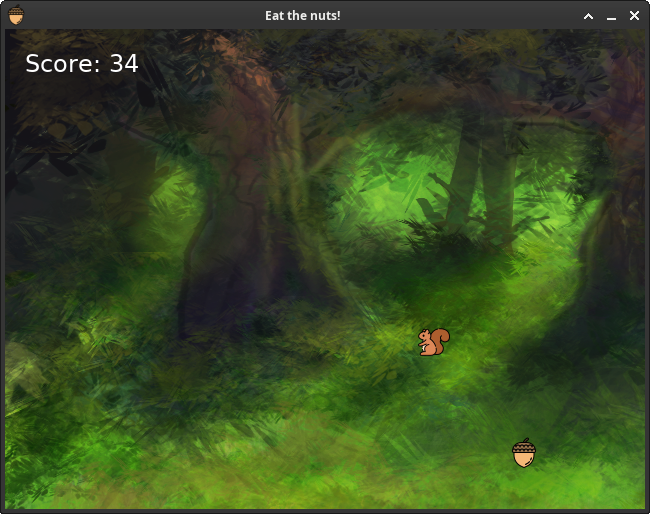
Okay, time to build your real first game with Nutshell : "Eat the nuts!".
Gameplay
An acorn nut is moving around the window. The goal is to make the squirrel eat the nut. The player control the squirrel with the mouse. Each time the player eat a nut, a new nut appears and its speed is faster than the one before. How to eat the nut? Click the nut!
The assets
To make the game, we will need few assets:
- An acorn nut image
- A squirrel image for the cursor
- A forest background image
- A forest background music
- And a crunch sound effect
You will find here a zip bundle with free assets and the full code of the game to let you follow this quick start.
Assets license
The assets are free to use, but check their license if you want to use them in your own game.
The code
Lets open main.nut again, and start coding our game!
Loading assets
First, we load the assets from disk to memory:
| main.nut | |
|---|---|
Image and Audio classes to load, respectively, well... images and
audio assets.
We also use the Font class that we saw earlier to load the default platform's
font again. Note that we added an integer parameter in the Font() constructor:
it is to load the font at a bigger size than the default (which is 16).
We store references to loaded assets into convenient variables to refer to them
easily later. We do this outside of the update() or draw() function to load
them only once and not at each call to these functions.
Game variables
Next we create some variables to hold gameplay values:
| main.nut | |
|---|---|
scorewill contain the current score so that we can display it. Each time a nut is eat, we will increment this variable.- ̀
acorn_xandacorn_ywill represent the position of the acorn image from the top left of the game window, in pixels. acorn_hspeedandacorn_vspeedwill be the acorn horizontal and vertical speed to make it move on the screen.speed_boostis the value that we will use to increase the acorn speed each time the player successfully eat a nut!
Setting up the game
Before starting the game loop, we configure some elements:
| main.nut | |
|---|---|
We first grab a reference to the current game window through the Window API by
calling the active() function.
The update() function, again!
Let's write our core function: update():
We use the Input and Canvas standard classes here.
Everything should be pretty self explanatory, but here are the big lines:
- At each game frame, we check if left mouse button was pressed.
- We convert the mouse coordinate and check if a box 32-pixels wide from the
cursor top left covers, even partially, the acorn.
- If so, we play a sound, increase the score and the acorn velocity, and teleport the acorn to a new place.
- We update the acorn position.
- We check if the acorn is about to go out of the screen.
- If so, we let it move in the opposite direction.
- We convert the mouse coordinate and check if a box 32-pixels wide from the
cursor top left covers, even partially, the acorn.
"What is dt anyway?"
You might have noticed that we use dt in this function to compute
acorn_x and acorn_y.
dt stands for Delta Time. It represents a tiny fraction of a second:
exactly 1/60th of a second.
This helps you to design your game using real-world seconds: if you want the
acorn to move at 20 pixels per seconds, multiplying 20 * dt calculates the
exact fraction of a pixel it need to move during this 1/60th-of-a-second
tick.
Behind the scenes, Nutshell uses this to keep your game running at the
exact same speed on every computer. If a player's computer lags for a
moment, Nutshell will automatically run the update() function a few
extra times in a row to safely "catch up" before drawing the next frame.
By always using dt for your movements, your game's physics will remain
perfectly smooth, fair, and consistent on any hardware!
Finally, the draw() function
Time to draw everyting!
| main.nut | |
|---|---|
We draw thing from back to front like baking a cake with layers, the top most
layer being closest to the player: First the background at the screen top
left. Then the acorn at it's current position. Finally the score, thank to the
game_font. The cursor is always displayed last.
Full code
Lets recap, here is the full source code of this mini game:
Congratulations!
You've made it!
Now you know everything required to start creating your game with Nutshell...
Go on, and share with us your creations!